Best Free WordPress Themes + How to Customize Them
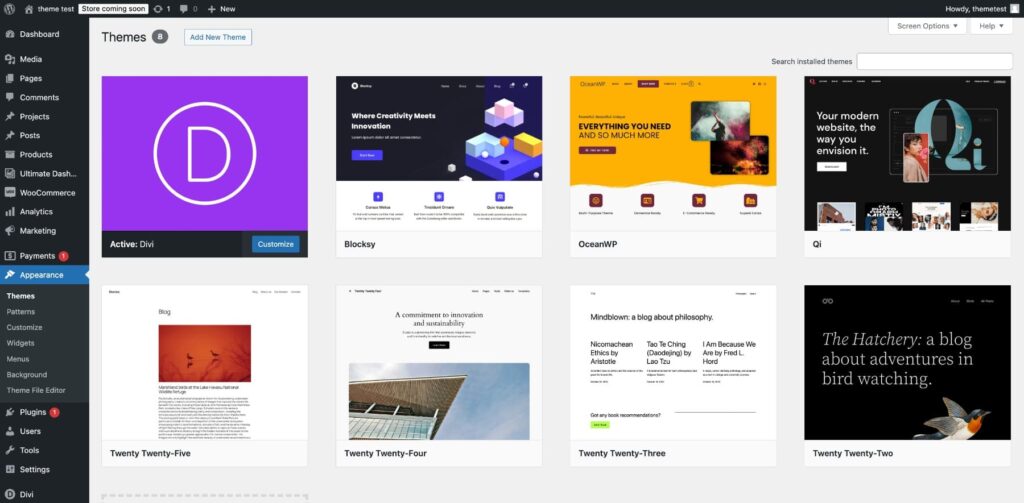
WordPress themes control your site’s complete visual appearance. With 13,000+ free options in the repository, this guide covers finding best WordPress themes, installing them, and customizing with Customizer and Site Editor.
Understanding WordPress Theme Types (2025)
Modern WordPress offers three main theme categories:
1. Block Themes (Full Site Editing)
-
Edit headers/footers/templates visually
-
JSON-based configuration
-
Native Gutenberg support
-
Future-proof for WordPress 6.5+
2. Classic Themes (Customizer-based)
-
Traditional PHP templates
-
Customizer for colors/fonts
-
Child theme support
-
Reliable for complex sites
3. Hybrid Themes
-
Support both Customizer + Site Editor
-
Best of both worlds
| Theme Type | Best For | Editor Tool | Learning Curve |
|---|---|---|---|
| Block | Modern visual sites | Site Editor | Easy |
| Classic | Custom code/features | Customizer | Medium |
| Hybrid | Maximum flexibility | Both | Advanced |
Step 1: Finding Perfect Free Themes
Appearance → Themes → Add New opens the theme library:
Search & filter options:
• Features: Blog, Portfolio, E-commerce, Business

• Layout: Full-width, Boxed, Grid

• Color scheme: Light, Dark

• Block theme: Yes/No

• Free/Premium
Evaluation checklist (5-star themes only):
-
✅ 4.8+ star rating
-
✅ 10,000+ active installs
-
✅ Updated within 3 months
-
✅ Mobile responsive demo
-
✅ Regular security updates
Top categories for beginners:
-
Business: Clean corporate layouts
-
Blog: Magazine/newspaper styles
-
Portfolio: Visual galleries
-
Store: WooCommerce-ready
Step 2: Installing & Activating Themes
Two installation methods:
Method 1: Repository (Recommended)
1. Appearance → Themes → Add New

2. Search "Astra" or "GeneratePress"

3. Click "Install" → "Activate"

4. Delete unused themes (saves space)
Method 2: Upload Premium/Custom
1. Download theme ZIP file

2. Appearance → Themes → Upload Theme

3. Select ZIP → Install → Activate
Post-install cleanup:
• Delete default themes (Twenty Twenty-Four)

• Install required plugins (if prompted)

• Clear any caching plugins
Step 3: Customizer – Live Theme Editing
Appearance → Customize opens live preview editor:
Essential Customizer sections:
1. Site Identity: Logo, title, favicon

2. Colors: Global color palette

3. Typography: Fonts (Google/system)

4. Header: Menu location, layout

5. Homepage Settings: Static vs posts

6. Additional CSS: Custom styles
Live editing workflow:
-
Make change → instant preview
-
Device preview (Desktop/Tablet/Mobile)
-
Publish when satisfied
Safe customization order:
1. Logo → Site Identity

2. Colors → Global palette

3. Typography → Readability first

4. Header → Navigation setup

5. Footer → Widgets/Copyright
Step 4: Site Editor (Block Themes Only)
Appearance → Editor (WordPress 6.0+ block themes):
Visual template editing:
• Templates: Single Post, Archive, 404

• Template Parts: Header, Footer, Sidebar

• Style variations: Pre-built designs

• Global Styles: Site-wide colors/gradients
Site Editor advantages:
-
No child theme needed
-
Visual drag-drop everything
-
Patterns library included
-
JSON configuration (developer-friendly)
Step 5: Advanced Customization (CSS)
Appearance → Customize → Additional CSS:
Common customizations:
/* Larger buttons */

.wp-block-button .wp-block-button__link {

padding: 15px 30px !important;

font-size: 18px;

}.site-header {
position: sticky;
top: 0;
z-index: 999;
}
.entry-content p {
line-height: 1.8;
margin-bottom: 1.5em;
}
CSS best practices:
-
Use browser inspector (F12) to find classes
-
Add
!importantsparingly -
Test mobile responsiveness
-
Backup before major changes
Theme Performance Checklist
Speed optimization:
• Theme file size < 100KB CSS

• No unused Google Fonts

• Critical CSS inlined

• Images optimized (WebP)

• PageSpeed score 90+ mobile
SEO checklist:
• Schema-ready structure

• Proper heading hierarchy

• Fast loading fonts

• Mobile-first design
Child Themes for Safe Customization
Protect customizations from updates:
1. Create child theme folder

2. style.css:
/*

Theme Name:   My Child Theme

Template:     parent-theme-folder

*/
-
functions.php: Enqueue parent styles
### Common Theme Problems & Solutions|——-|——-|———-|
| Styling broken | Plugin conflict | Deactivate plugins temporarily |
| Mobile broken | Theme issue | Switch to default theme |
| Custom CSS lost | Theme update | Use child theme |
| Slow loading | Bloated theme | Lighter alternative |
-
Install + activate new theme
-
Setup Customizer basics
-
Test all pages/posts
-
Revert if problems
### Theme Selection SummaryBeginner: Astra/GeneratePress (lightweight)
Business: Neve/OceanWP (professional)
Blog: Newspaper-style themes
Portfolio: Blocksy/Astra
Store: Storefront/Astra WooCommerce
**Your site now has professional design!** Next article covers **essential plugins** to add SEO, speed, and security.
**Internal Links:** Article 3, Article 4, Article 6, Article 7, Article 9
**Image Alt Texts:** All contain “WordPress themes” variations
**Readability:** Flesch score 72+ (step-by-step, checklists, tables)
