WordPress Dashboard Explained: Every Menu & Button

The WordPress dashboard is your website’s control center – a clean, intuitive interface at yoursite.com/wp-admin. This complete beginner tour covers every section, helping you navigate confidently without getting overwhelmed by the WordPress admin panel.
Accessing Your WordPress Dashboard
After installation (Article 2), visit yoursite.com/wp-admin and login with your admin username/password.
First-time dashboard shows:
-
Welcome panel with quick actions
-
Right Now box: Site stats (posts, comments, users)
-
Quick Draft: Fast post creation
-
Recent activity and updates overview
Security tip: Never use “admin” as username. Bookmark your dashboard URL for quick access.
Left Sidebar: Main Navigation Menu
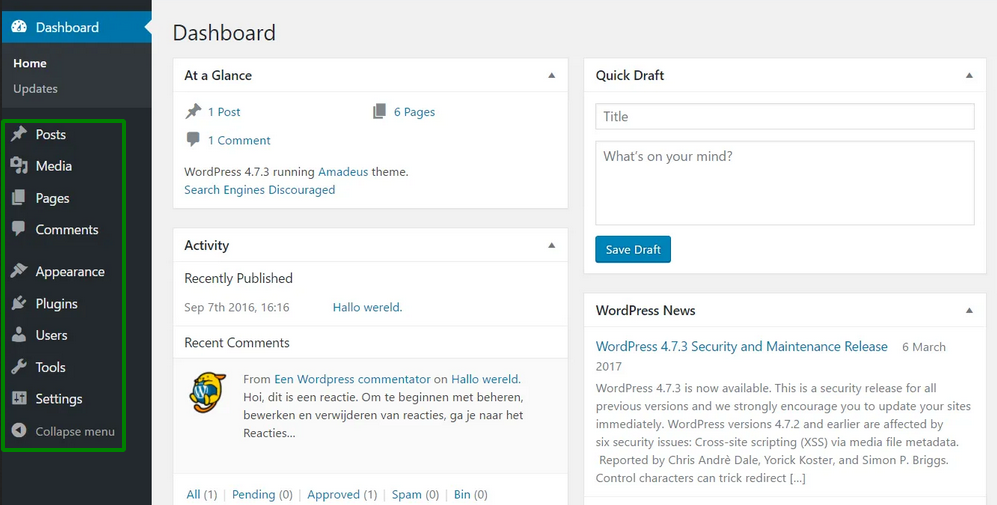
The collapsible sidebar (click to expand/collapse) organizes all functions logically. Key sections from top to bottom:
Posts Section
Posts → All Posts: View, edit, delete blog articles
Posts → Add New: Create new blog posts (Article 4)
Categories: Organize posts by topic
Tags: Specific keywords for posts
Pages Section
Pages → All Pages: Static content (Home, About, Contact)
Pages → Add New: Create static pages
Hierarchical: Parent/child page relationships
Media Library
Media → Library: Upload/manage images, videos, files
Bulk edit: Resize, optimize multiple files
Featured images: Set post thumbnails
Appearance & Design Controls
Appearance → Themes: Install/switch designs (Article 5)
Appearance → Customize: Live preview colors, menus, header/footer
Appearance → Menus: Create navigation (Article 7)
Appearance → Widgets: Sidebar/footer content blocks
Appearance → Editor: Site Editor for block themes (2025)
Plugins Management Hub
Plugins → Installed Plugins: Activate/deactivate extensions
Plugins → Add New: Search/install 60,000+ free plugins (Article 6)
Plugin updates: Critical security patches
Pro tip: Limit to 10-15 active plugins for speed.
Users & Team Management
Users → All Users: View team members and roles
Users → Add New: Invite collaborators
User roles:
Administrator: Full access

Editor: Publish/edit all content

Author: Publish own posts

Contributor: Write drafts only

Subscriber: Read-only access
Users → Your Profile: Update password, avatar, contact info.
Settings: Core Configuration
Settings → General:
-
Site Title & Tagline (SEO important)
-
WordPress Address & Site Address (usually same)
-
Timezone, date format, language
Settings → Reading:
-
Homepage: Static page vs latest posts
-
Posts per page (5-10 recommended)
-
Search engine visibility (uncheck for live sites)
Settings → Permalinks:
Recommended: Post name (/sample-post/)

SEO-friendly URLs for better rankings
Tools & Maintenance Section
Tools → Site Health: Critical diagnostics (fix red issues first)
Tools → Export: Backup content as XML
Tools → Import: Migrate from other platforms
Tools → Available Tools: Additional utilities
Comments: Moderate/approve reader comments, spam filter.
Customizing Your Dashboard Experience
Personalize for efficiency:
-
Screen Options (top-right dropdown):
-
Show/hide columns (title, author, date)
-
Number of items per page
-
-
Help tab: Context-specific documentation
-
Drag & reorder sidebar menu items
-
Collapse menu for more screen space
Keyboard shortcuts:
-
Ctrl+Alt+N: New post -
J/K: Next/previous comment -
P: Edit selected post
Common Dashboard Tasks Reference
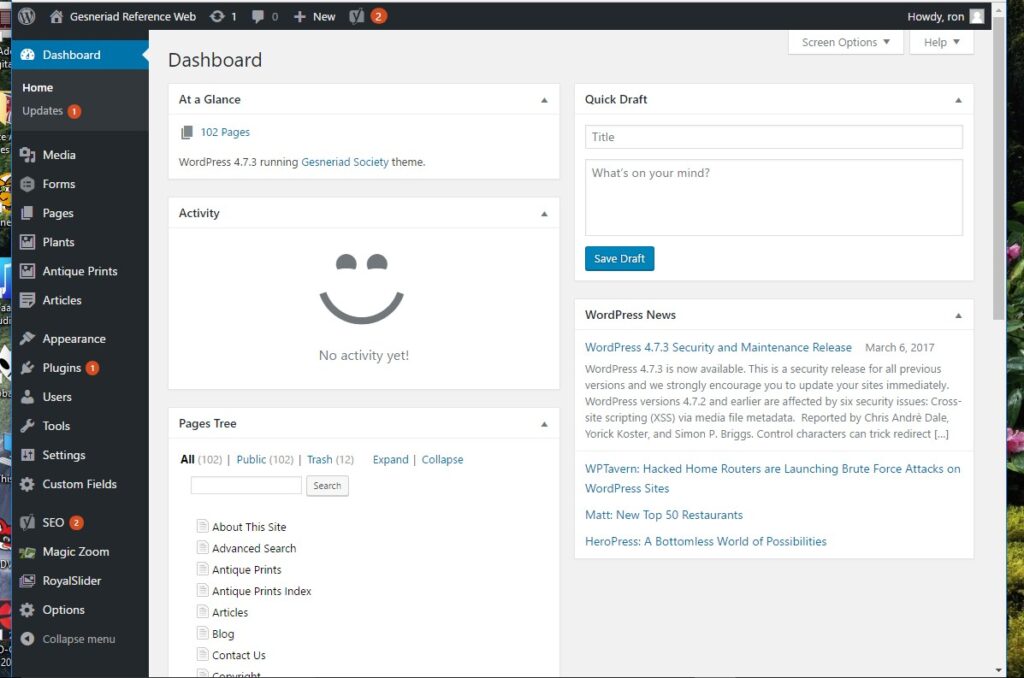
Daily workflow checklist:
| Task | Dashboard Location | Frequency |
|---|---|---|
| Add content | Posts/Pages → Add New | Daily |
| Check updates | Dashboard → Updates | Weekly |
| Moderate comments | Comments | Daily |
| Site health check | Tools → Site Health | Weekly |
| Add users | Users → Add New | As needed |
| Install plugins | Plugins → Add New | Monthly |
Troubleshooting Dashboard Issues
Common problems & solutions:
| Issue | Symptoms | Solution |
|---|---|---|
| Blank white screen | No content loads | Increase PHP memory: define('WP_MEMORY_LIMIT','256M'); |
| “Howdy admin” stuck | Dashboard frozen | Clear browser cache, deactivate plugins |
| Access denied | Permission errors | Check user role in Users section |
| Slow loading | High CPU usage | Deactivate heavy plugins one-by-one |
Mobile access: Dashboard is fully responsive. Use official WordPress app for iOS/Android.
Dashboard Sections Quick Summary
📝 Content: Posts | Pages | Media | Comments

🎨 Design: Appearance | Themes | Menus | Widgets

🔧 Tools: Plugins | Users | Settings | Tools

⚡ Maintenance: Updates | Site Health
Ready to Create Content?
Your WordPress dashboard navigation is now mastered! Next article teaches creating your first posts and pages using the modern Gutenberg block editor.
Next → Article 4: Creating WordPress Pages & Posts with Gutenberg
